
Understanding Minecraft Configuration Screens
Navigate categories, toggles, presets, and save controls while keeping your configuration changes easy to track.
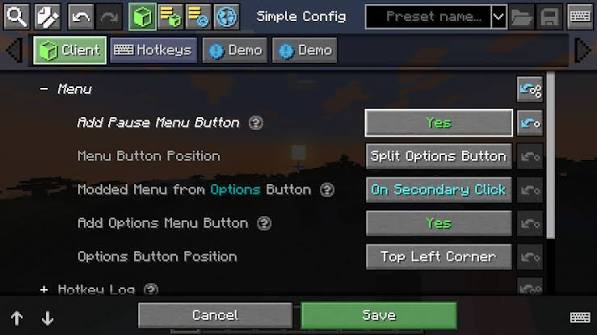
Read categories before changing values
Configuration screens often group options by purpose. Start by identifying whether a category affects the client, controls, visuals, or gameplay. The pictured interface is an example of a settings layout; individual mods can organize their screens differently.
Make one intentional change at a time
Read the option label and available tooltip, then change a single value. Apply the change and inspect the result in a test session. This approach makes a useful setting easier to keep and an unexpected effect easier to reverse.
Distinguish saving from leaving the screen
Buttons such as Save, Done, Cancel, or Discard can perform different actions depending on the mod. Observe the interface instructions instead of assuming that closing a window always writes changes. Some settings also require returning to the world or restarting the game.
Use defaults as a recovery reference
Before editing a large group of options, note the original values or copy the relevant configuration files while the game is closed. A reset button may affect one entry or an entire category. Review its scope carefully so a small correction does not erase unrelated preferences.